My iTerm2 Terminal Setup
Table of Contents
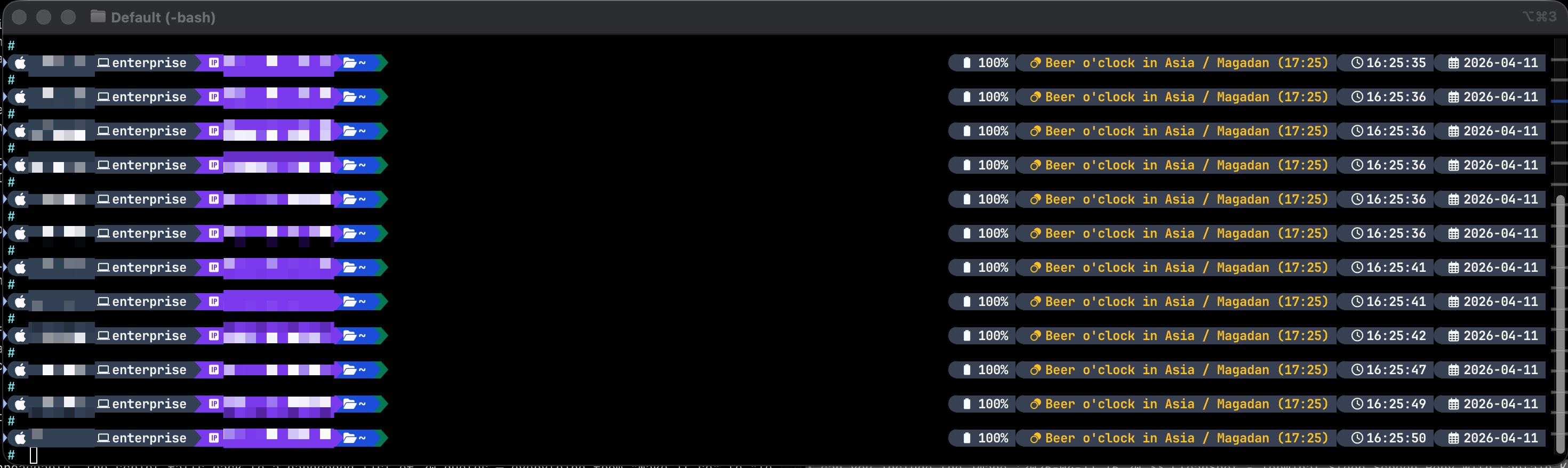
The Setup
The prompt has a lot going on. Left side: OS icon, username, hostname, IP address, current directory, git branch and status. Right side: battery, command duration, a beer o’clock widget, time, and date. All connected with powerline arrows and coloured segments.
The three components that make it work:
- iTerm2 — the terminal emulator
- Starship — the prompt
- A Nerd Font — so all the icons actually render
Starship
Starship is a cross-shell prompt written in Rust. It’s fast, configured in a single TOML file, and handles everything from git status to custom shell commands. Install it with Homebrew:
brew install starship
Then add this line to ~/.bash_profile (or ~/.zshrc for zsh):
eval "$(starship init bash)"
The configuration lives at ~/.config/starship.toml. The prompt is built from a format string that chains together modules — each module renders a segment with its own background colour, icon, and content. Powerline-style arrows between segments are just characters that match the background colour of the adjacent blocks.
Prompt structure
The left side of the prompt:
format = """
[](#334155)\
$os\
$username\
$hostname\
[](fg:#334155 bg:#7C3AED)\
${custom.main_ip}\
[](fg:#7C3AED bg:#1D4ED8)\
$directory\
[](fg:#1D4ED8 bg:#047857)\
$git_branch\
$git_status\
[](fg:#047857)\
...
"""
The [](fg:A bg:B) entries are the arrow characters that transition between segment colours. The result: slate → purple → blue → green, left to right.
The right side uses $fill (which expands to fill the remaining width) to push everything to the right edge:
$fill\
$battery\
$cmd_duration\
${custom.beer_place}\
$time\
${custom.custom_date}\
Current directory and git
[directory]
style = "bg:#1D4ED8 fg:#F8FAFC bold"
truncation_length = 3
truncate_to_repo = false
format = "[ $path ]($style)"

[git_branch]
symbol = " "
style = "bg:#047857 fg:#F8FAFC bold"
format = "[ $symbol$branch ]($style)"

[git_status]
style = "bg:#047857 fg:#FCA5A5 bold"
format = "[$all_status$ahead_behind ]($style)"
Paths truncate to 3 segments. Git branch and status are in the same green block — the status text turns pink when there are changes.
IP address
A custom module that reads the IP of the default network interface:
[custom.main_ip]
command = "dev=$(route -n get default 2>/dev/null | awk '/interface:/{print $2; exit}'); [ -n \"$dev\" ] && ipconfig getifaddr \"$dev\" 2>/dev/null"
when = "true"
style = "bg:#7C3AED fg:#F8FAFC bold"
format = "[ $output ]($style)"
shell = ["bash", "--noprofile", "--norc"]
Useful when working across multiple machines or switching between networks.
Beer o’clock
The right side includes a widget that checks whether it’s currently 17:00 somewhere in the world and, if so, names a random place:
[custom.beer_place]
command = """
python3 - <<'PY'
...finds all timezones where it's currently 17:xx...
...picks one at random and prints it...
PY
"""
style = "bg:#374151 fg:#FBBF24 bold"
format = "[](fg:#374151)[ $output ]($style)"
It caches the result for the current minute so it doesn’t run the full timezone scan on every prompt render. It’s entirely unnecessary and I like it.
Command duration
[cmd_duration]
min_time = 500
style = "bg:#374151 fg:#F59E0B bold"
format = "[](fg:#374151)[ $duration ]($style)"
Shows elapsed time for any command that takes more than 500ms. Useful for slow scripts.
Character
The prompt character changes colour based on exit status:
[character]
success_symbol = "[#](bold bright-cyan) "
error_symbol = "[#](bold bright-red) "
Cyan # on success, red on failure.
Nerd Fonts
Starship uses icons from Nerd Fonts — patched versions of common programming fonts with thousands of extra glyphs. Without a Nerd Font installed and selected in iTerm2, the icons render as missing characters or boxes.
Install via Homebrew:
brew install --cask font-meslo-lg-nerd-font
Then in iTerm2: Settings → Profiles → Text → Font — select the Nerd Font variant. MesloLGS Nerd Font is a common choice and the one Starship’s own documentation recommends.
iTerm2 Colour Scheme
The terminal background is a near-black dark grey. A good starting point is One Dark or Catppuccin Mocha — both work well with the Starship colour palette above. Import colour schemes in iTerm2 via Settings → Profiles → Colors → Color Presets → Import.
iTerm2 Shell Integration
The .bash_profile loads iTerm2’s shell integration:
test -e "${HOME}/.iterm2_shell_integration.bash" && source "${HOME}/.iterm2_shell_integration.bash"
Install it from inside iTerm2 via iTerm2 → Install Shell Integration. This enables features like command history navigation, semantic zones (iTerm2 knows where each command starts and ends), and the imgcat command for rendering images inline in the terminal.
The Full Config
The complete ~/.config/starship.toml is the main thing to customise. The Starship documentation covers every module — there are built-in modules for AWS, Kubernetes, Node, Python, Terraform, and most things you might want in a prompt without writing custom commands.
Part of an ongoing effort to make the terminal a more interesting place to be.